Reply to a mentor and attach a file
Type your reply in the box under the conversation, attach a file with the paper clip, and click Send reply.
Written By GovPreneurs
Last updated 21 days ago
Use the reply box to answer your mentor or to add a file. The reply goes into the same conversation.
ℹ️ Before you start: The conversation must be open. A closed conversation has no reply box. Send a new review from the opportunity instead. See Send an opportunity or small order to a mentor for review.
Steps
- Open the review in Mentor Reviews. See Find and read a mentor-review conversation.
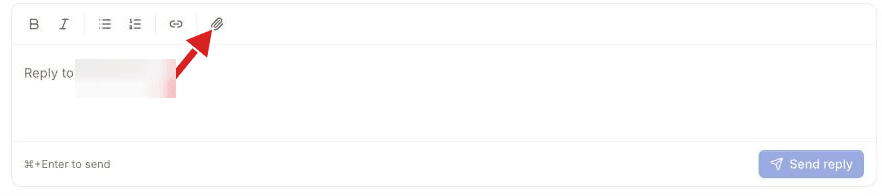
- Click the box at the bottom. The box starts with "Reply to" and the mentor name.
- Type your reply. Use the toolbar for bold, italic, lists or a link.
- To add a file, click the paper clip in the toolbar. Select one or more files.
- To remove a file, click the cross next to its name.
- Click Send reply.
What you see next
Your reply shows at once in the thread, with your files. The page then checks the thread again to confirm it. The button reads "Sending…" while the reply goes.
You can send a reply with only a file, or with only text. The button stays off while the box is empty and no file is attached.
⚠️ If this does not work: The box shows an error under the toolbar. Read the message, keep your text, and click Send reply again. See What to do if a payment, attachment, or reply fails.
Related articles
Was this helpful?
Still need help? Share an idea