Search and filter forecasts by work, buyer, place, and expected date
Use the search box and the Filters panel on Forecasts to narrow by kind of work, place, who may bid, size and timing.
Written By GovPreneurs
Last updated 21 days ago
Search finds forecasts by words. Filters narrows the list by facts. Use both together.
Search by words
- In the left menu, click Forecasts.
- Click the box Search by work, place or buyer.
- Enter a word. A shorter word finds more.
Narrow with Filters
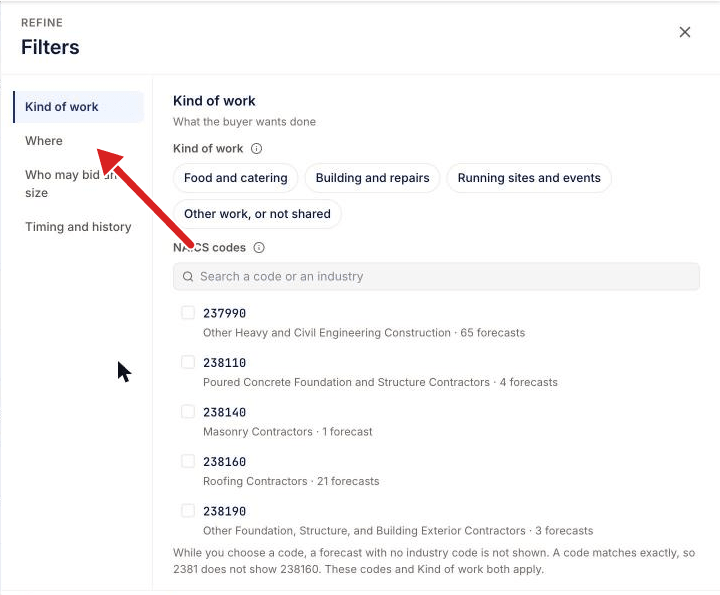
- Click Filters. The panel opens.
- In Kind of work, select food, building, running sites, or other work. You can also search an industry code (NAICS).
- In Where, select States you serve, or select states and cities.
- In Who may bid and size, select who may bid and the Estimated value size.
- In Timing and history, select the Expected posting date, Bought before, Status or Posted by the buyer.
- Click Show [number] forecasts.
Sort the list
Click Sort and select one:
- Best match (on Forecasts for you only)
- Opening soonest
- Newly posted
- By value
Good to know
- A forecast with no value, place or date does not show while you filter on that fact.
- A NAICS code matches exactly. The code 2381 does not show 238160.
- Your states come from My Business. See How do I update what my business can take on?.
- To remove all filters, click Clear all.
What you see next
The list shows only the forecasts that match all your selections. The button shows the count.
⚠️ If the list is empty: The page says "No forecasts match these filters." Click Clear all. Then read Why a forecast is missing from For You.
Related articles
Was this helpful?
Still need help? Share an idea