Find partners ranked for your business
Find partners ranks companies that win your kind of work, so start with Your top 3, open a card, and save the ones you want.
Written By GovPreneurs
Last updated 21 days ago
Find partners ranks companies by how well they fit what you do. It uses your trade codes and your area from My Business. See Which business facts affect opportunity matches?.
Steps
- In the left menu, click Partners.
- Click the tab Find partners.
- Read the section Your top 3. Start with these companies.
- Click a card to read more about the company. See Read a company's award history and fit reasons.
- To keep a company, click the bookmark on its card. See Add a company to My partners and track outreach.
- If a company is wrong for you, click Not right for me.
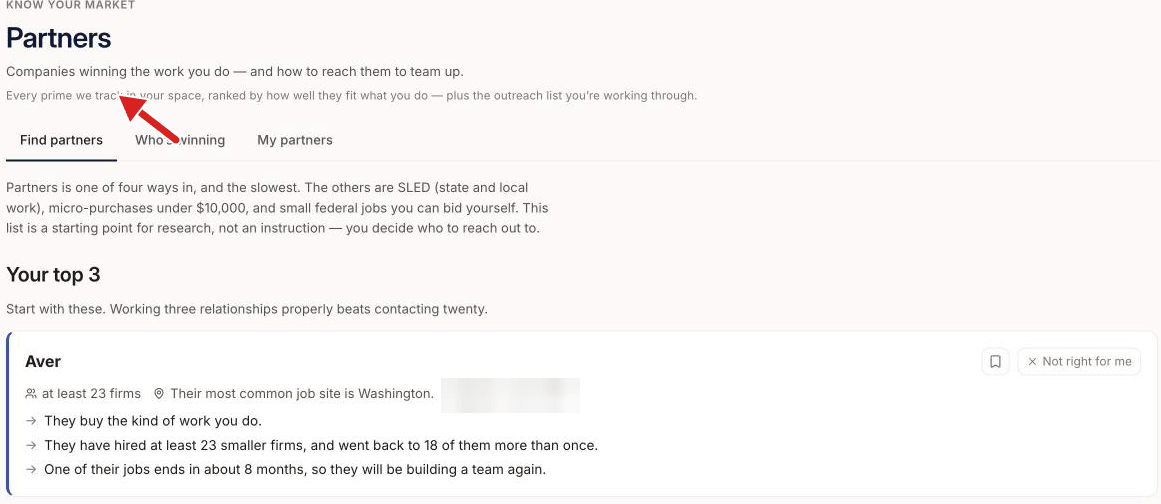
What a card shows
- The company name and a label such as Jobs coming up again. See Understand Partner play, Competitor, and Recompete watch.
- How many firms the company brought in as subcontractors, as "at least" a number.
- Where the company works.
- The biggest job that the company won.
- A short list of reasons why the company fits you.
The section Everyone else we found holds the rest of the list.
If you click Not right for me
The company leaves the list. A note says "Removed" and the company name, with an Undo button. The note stays for about 12 seconds.
What you see next
The list starts again from your facts when they change. A note can say that your list is still being refreshed.
States you may see
- "Tell us what you do": add your trade in My Business.
- "We're finding your partners": wait and check back.
- "No companies matched yet": widen the states you work in. See How do I update what my business can take on?.
The list is a place to start research. It is not an instruction. You decide who to contact.
⚠️ If this does not work: If a company is missing, read Why a partner is missing or has incomplete data.
Related articles
Was this helpful?
Still need help? Share an idea