Add a company to My partners and track outreach
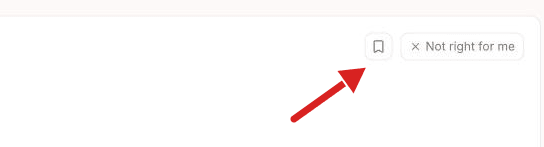
Click the bookmark on a company to add it to My partners, then move it from stage to stage as you reach out.
Written By GovPreneurs
Last updated 21 days ago
My partners is your outreach list. It shows each company you saved, in the stage of your outreach.
Add a company
- In Find partners, click the bookmark on a company card.
- Or open the company panel and click Save to my partners. The panel opens from Find partners and from Who's winning.
Open your list
- Click the tab My partners.
- Find the company in the column for its stage.
The stages
The list has eight columns. A new company starts in the first. Two columns also show the government term under the label: Qualified under On their vendor list, and Past performance under Finished a job for them.
- Saved
- Researching
- Contacted
- Follow-up
- On their vendor list
- Teaming discussion
- Working together
- Finished a job for them
What you see next
Each card shows the company name and where you found it, for example "from Find partners". Click the company name to open its panel.
To move a company to the next stage, see Change or remove a partner outreach stage.
If the list says "Your list is empty", you did not save a company. Click Find partners.
Tips
- Work a few relationships well. The page suggests starting with Your top 3.
- Use a company's website to reach the team that handles subcontracting.
Related articles
Was this helpful?
Still need help? Share an idea