How do I snooze a task for a week?
Open the three-dot menu on the task and click Snooze for a week. The task leaves your lists and returns after a week.
Written By GovPreneurs
Last updated 21 days ago
Snooze a task when you cannot do it this week. A snoozed task leaves your lists for seven days. Then it comes back.
ℹ️ Before you start: You can snooze only an open task. A done or dismissed task has no snooze.
Steps
- In the left menu, click Tasks.
- Find the task in All, Roadmap or Action Plan.
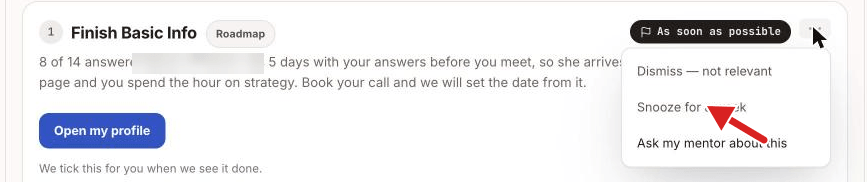
- Click the three dots at the top right of the task. A menu opens.
- Click Snooze for a week.
What you see next
A message reads "Snoozed for a week." The message has no Undo button. The task leaves every open list. It does not count in the line "things need you".
After seven days the task shows again, in its place in the order.
Good to know
- A due date does not move when you snooze. A task can come back already late.
- If you need the task sooner, ask your mentor. The menu also has Ask my mentor about this. It opens the Mentors page. See How do I book a mentor consultation?.
- If you decide that the task is not for you at all, dismiss it. See How do I dismiss a task that is not relevant?.
⚠️ If a snoozed task is missing: That is expected. The page does not list snoozed tasks. See Why is an expected task missing?.
Related articles
Was this helpful?
Still need help? Share an idea