Search, filter, and sort award records
Use the filter chips, the search box and Sort on the Awards page to find awards that fit your trade, area, size and timing.
Written By GovPreneurs
Last updated 21 days ago
The chips, the search box and Sort on the Awards page narrow the list. The page starts with two chips on.
Steps
- In the left menu, click Awards. The tab The market opens.
- Click a chip to turn it on or off.
- To find one company, enter the start of its name in Search a company name. Press Enter.
- In Sort, select Best match, Most recent or Biggest.
- Click More at the bottom to see the next page. Click Back to return.
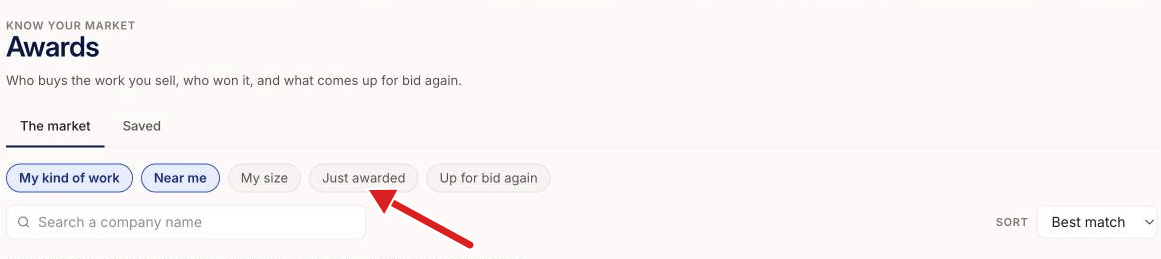
What the chips do
- My kind of work: jobs like the ones you do.
- Near me: awards in the states you work in.
- My size: jobs big enough to need subcontractors and small enough to join.
- Just awarded: awards from the last few months.
- Up for bid again: jobs that come up for bid again within a year.
My kind of work and Near me are on when you open the page.
The search looks at the start of the winner's name. During a search, the list shows the awards in A to Z order of the winner's name. Sort does not change this order.
What you see next
Each card shows the buyer, the winner, the value, the place and a line that says why it is in your list.
If you see "Nothing matched", turn off a chip to widen the list.
If a chip is on but your profile has nothing to narrow by, a note tells you the chip does not change the results. Add the missing facts in My Business. See Which business facts affect opportunity matches?.
If the page says "Tell us what you do", click Add your trade. The Success Center opens in a new tab. Add your trade codes in My Business.
⚠️ If this does not work: If a detail is missing from a card, read Why an award or bidder detail is missing.
Related articles
Was this helpful?
Still need help? Share an idea