Find a saved opportunity, forecast, or small order in Pipeline
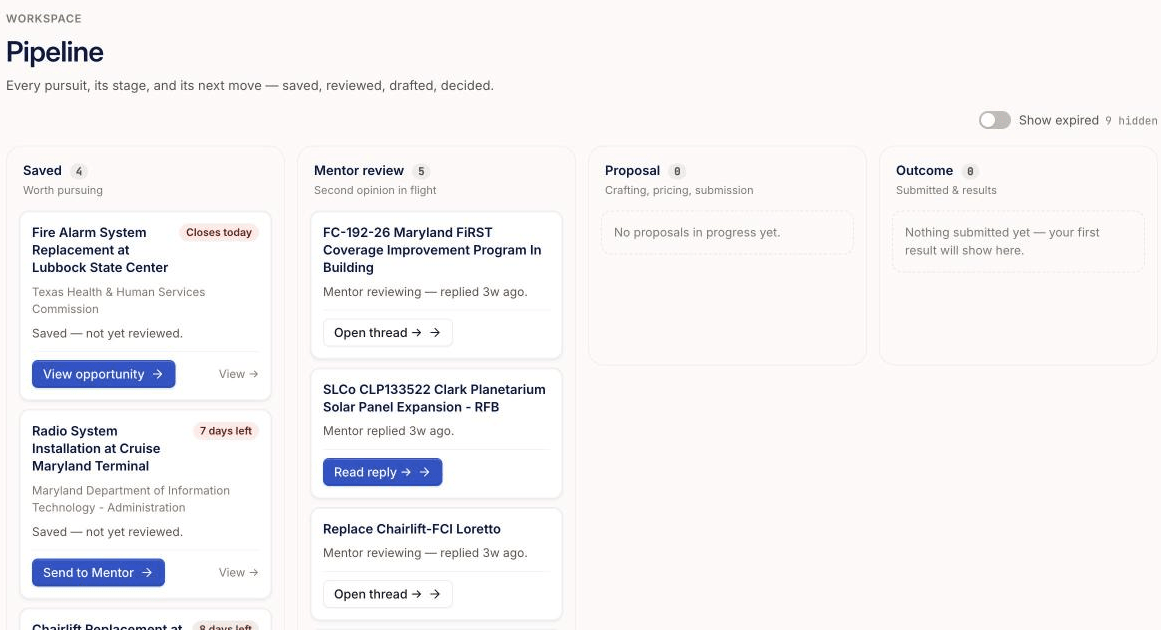
Open Pipeline and look in the Saved column, where each card opens the saved item or sends it to a mentor.
Written By GovPreneurs
Last updated 21 days ago
Every opportunity, forecast or small order that you save shows as a card in the Saved column of Pipeline. Use the cards to reopen an item or to send it to a mentor.
ℹ️ Before you start: You must have saved an item. Save an opportunity or a small order, or track a forecast. See Save or remove an opportunity. On the Pilot plan, the Opportunities page is locked, so Pipeline holds only forecasts and small orders.
Steps
- In the left menu, click Pipeline.
- Look in the Saved column. Each card shows the title and the days left.
- Click the title or the button on the card to open the item.
- On an opportunity card, click Send to Mentor. The opportunity page opens. Then follow Send an opportunity or small order to a mentor for review from step 2.
- On a small-order card, click Open the order. On a forecast card, click Open the forecast.
What you see next
The item opens on its own page. Cards in the Mentor review column belong to reviews that you sent. Click Open thread or Read reply on those cards. See Find and read a mentor-review conversation.
A card for an opportunity that closes within a few days shows View opportunity and not Send to Mentor. A forecast card shows no countdown, because a forecast date is not a closing date.
If a column is empty, it shows a short line. If the whole page is empty, it reads "Nothing in your pipeline yet" and a Browse opportunities button.
⚠️ If a saved item is missing: The item may be expired and hidden. Read Show expired saved opportunities. If the item was never saved, read Why a saved opportunity is missing from this list.
Related articles
Was this helpful?
Still need help? Share an idea