Narrow the small-orders board
In Narrow this down, select an order size and a delivery time to shorten the Small orders list.
Written By GovPreneurs
Last updated 21 days ago
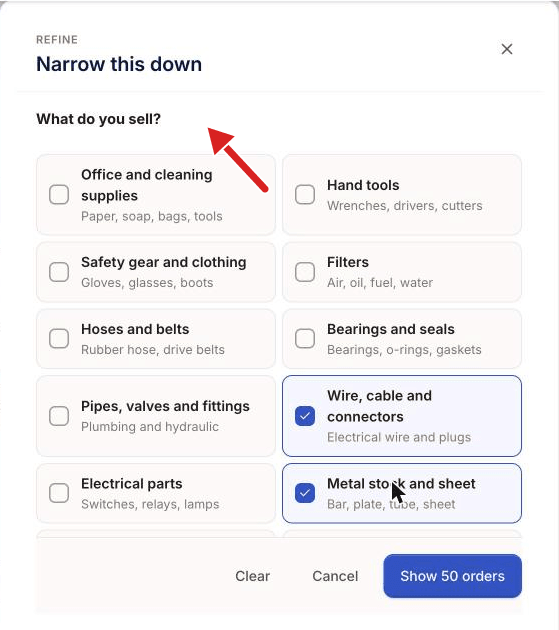
Narrow this down has three parts: the parts you sell, the size of the order and the time to deliver. This guide covers size and time. For the parts, see Tell Hunter which parts or product categories you sell.
Steps
- In the left menu, click Small Orders.
- Click Narrow this down.
- Under How big an order?, select a size.
- Under How long do you get to deliver?, select Any, 30 days or more, or 60 days or more.
- Click Show [number] orders.
The size choices
- Any size
- The smallest band, under one thousand dollars. The panel says "Good ones to start with".
- The middle band, from one thousand to five thousand dollars.
- More than five thousand dollars.
A size band uses the order value that Hunter works out. An order with no known value drops out of a size band. It stays under Any size.
The delivery choices
The panel says: "If you do not keep stock, choose more days." A short window is hard to meet. You must order the parts first. An order with no stated delivery time drops out of a time choice.
What you see next
- A line above the list names your choices. Click Show all to remove them.
- If nothing fits, the panel says "No orders match — change something above".
- On the board, the page says "No orders match what you chose." Click Clear what I chose.
You can also click Clear in the panel to reset your choices before you apply them.
⚠️ If the board is empty with no choices set: Read Why no small orders appear for your business.
Related articles
Was this helpful?
Still need help? Share an idea